
Why I Built StayActive --- and How I Built It
There are days when I sit down to work on something and lose track of time. One task turns into another, and before I notice, I have spent hours in front of my computer. I forget to drink water, give my eyes a break, or get up and walk for a few minutes.
I know these things matter. The difficult part is remembering them when I am focused on work.
That is why I started building StayActive: a small Windows desktop app that reminds me to take care of the basics while I work.
I did not want another productivity app asking me to track everything I do. I wanted something quiet, useful, and easy to leave running in the background. It should help me build better habits without collecting personal information or becoming another distraction.
The idea was simple: make it easier to remember the small things that are easy to ignore.
The problem I wanted to solve
A computer helps us get work done, but it can also make it easy to ignore our bodies. When we are studying, coding, attending meetings, or preparing for an exam, basic habits can slip away.
I wanted to address a few specific things:
- Water: remembering to drink water at regular intervals.
- Eye breaks: following the 20-20-20 rule instead of staring at the same screen for too long.
- Movement: taking a short walk rather than sitting continuously.
- Glasses: having a simple reminder to put on my computer glasses before starting.
- Control: being able to pause reminders when I am in an exam or another situation where interruptions are not useful.
I could have used separate timers for these things, but I wanted them in one small application. More importantly, each reminder needed to work independently. Drinking water should not reset the walking timer, and taking a walk should not reset the water reminder.
That small requirement shaped a lot of the app's design.
What I wanted StayActive to be
I set a few rules for myself while building it.
1. It should stay out of the way
StayActive is designed to run quietly from the Windows system tray. I can open the dashboard when I need it, check the next reminders, change settings, or pause everything. Otherwise, it can stay in the background.
2. The reminders should be independent
Each reminder has its own schedule and its own response. A quick action should update only the timer related to that action.
3. I should be able to control it
Reminders are useful only when they fit the situation. StayActive has a Pause all / Resume all control in the dashboard and tray menu. The pause state is saved and remains in place after restarting the app.
4. It should keep my information on my computer
I did not want accounts, analytics, a remote service, or an activity history for a reminder app. Settings are stored locally, and the app does not record audio or access the camera.
A look at the app
The dashboard gives me a quick view of the session and the next reminders. The goal is to make the important information visible without filling the screen with unnecessary details.
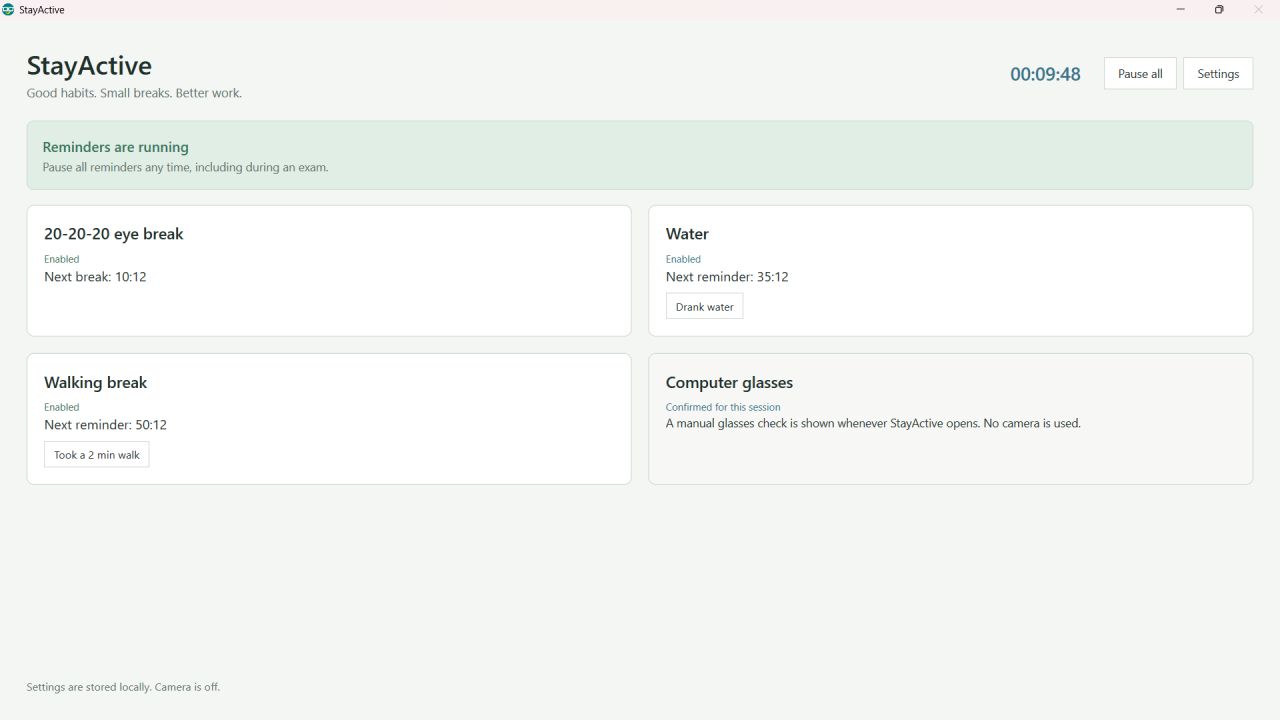
The dashboard shows the elapsed session time, the next reminder for each activity, and quick actions for water and walking.
The settings page lets me change the appearance, startup behaviour, and reminder intervals. I can use the Windows theme, Light mode, or Dark mode, and I can choose whether the app starts with Windows.
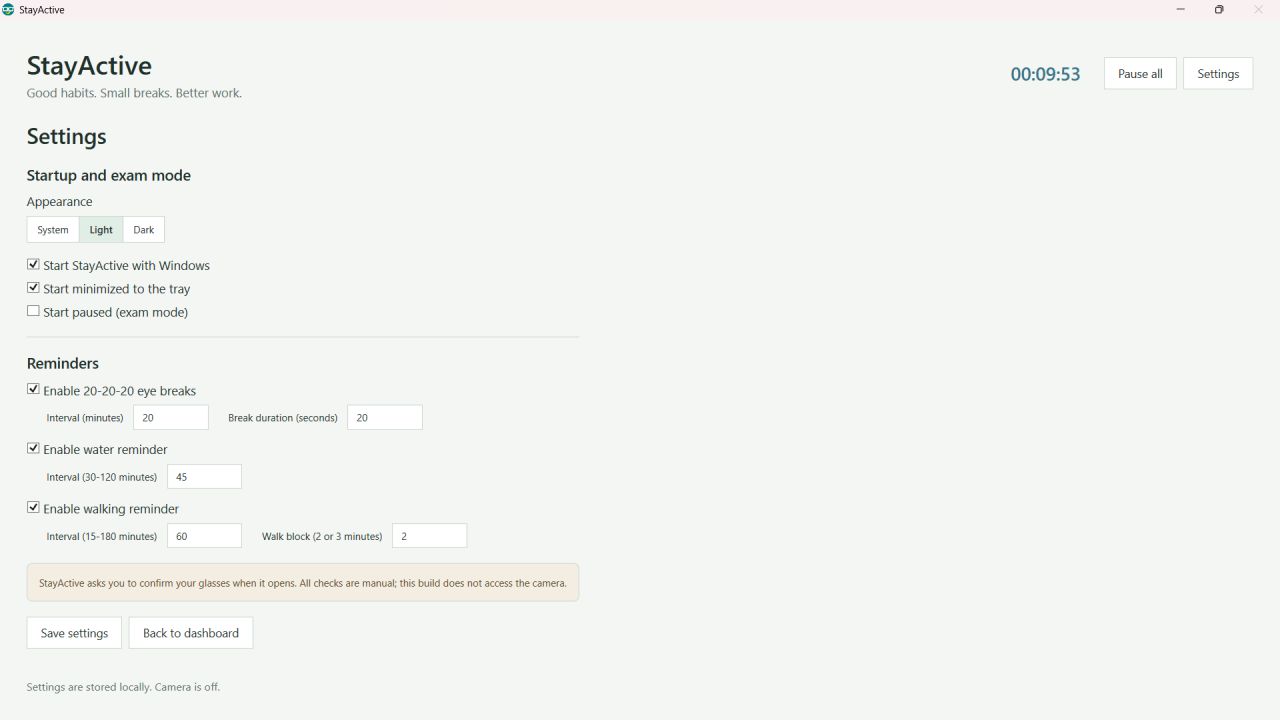
The settings are intentionally straightforward. I can adjust the schedules without having to configure a complicated routine.
There is also a start-up glasses check. It asks me to confirm that I am wearing my computer glasses before opening the dashboard. It is a manual reminder, not a camera-based check.
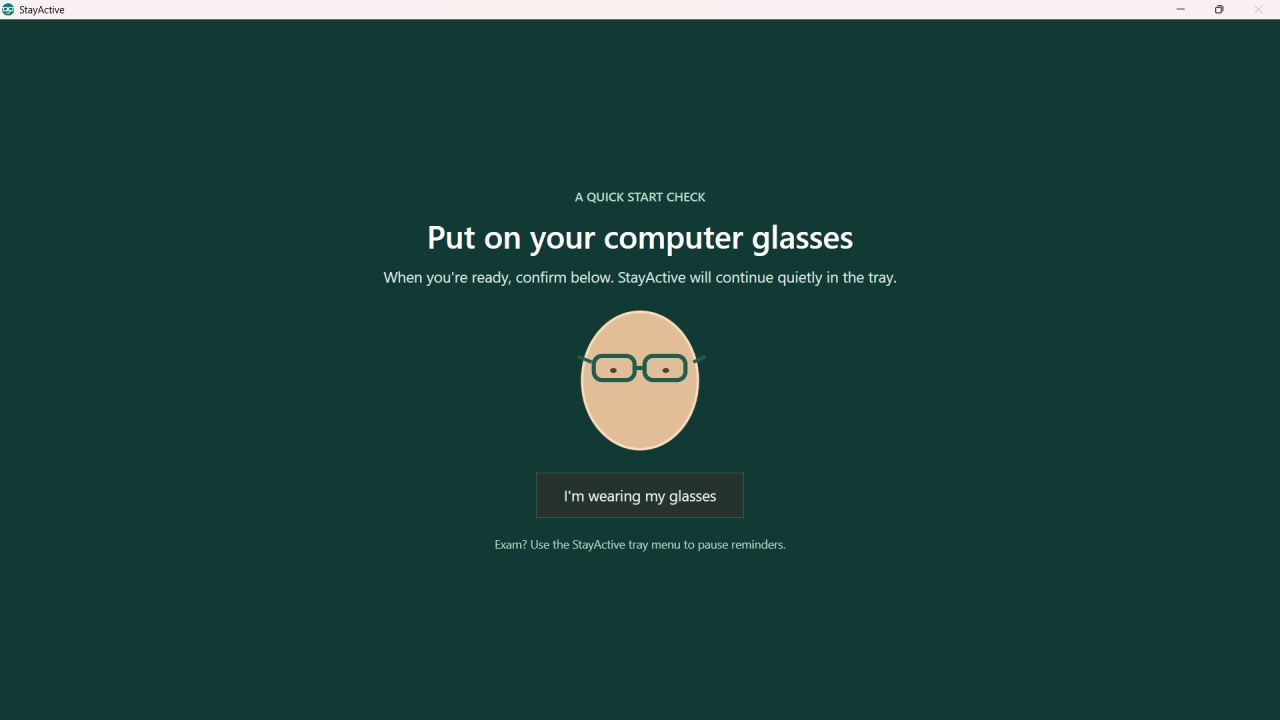
The glasses screen is a prompt to remember a habit. It does not attempt to verify anything about the person using the computer.
How I built it
StayActive is a native Windows desktop application built with C#, WPF, and .NET 8. I chose WPF because I wanted a Windows interface with access to system features such as the tray icon, session events, power notifications, and media controls.
The project is organised into the application, core logic, and tests. Keeping the core behaviour separate from the user interface makes it easier to test the rules that control the reminders.
At a high level, the app has a few responsibilities:
- Reminder scheduling: tracks the next eye, water, and walking reminders independently.
- Dashboard and overlays: displays the current state and presents reminders when they are due.
- Settings: saves preferences locally, including intervals, appearance, and startup options.
- Windows integration: handles tray actions, startup registration, session lock and unlock, system suspend and resume, and lid-switch notifications.
- Media handling: pauses supported media sessions when a reminder overlay appears and resumes only the sessions StayActive successfully paused.
- Tests: checks core behaviour so changes to timing and pause rules are less likely to break existing functionality.
The application uses a shared monotonic session clock for elapsed time and reminder countdowns. That matters because a timer should not suddenly gain or lose time when the system clock changes.
The basic development commands are:
bashdotnet build StayActive.slnx -c Debug
dotnet test StayActive.slnx -c Debug
dotnet run --project StayActive/StayActive.csproj
These commands require Windows 10 or 11 and the .NET 8 SDK.
The reminders and how they behave
I wanted each reminder to have a clear purpose, so they do not all behave in the same way.
Water reminder
The default interval is 45 minutes, and it can be configured from 30 to 120 minutes. When the reminder appears, it gives me a chance to confirm that I drank water. The timer resets only after confirmation.
The overlay has a 35-second countdown. If I do not respond, it closes and snoozes the water reminder for five minutes. The Drank water button on the dashboard also resets only the water timer.
20-20-20 eye break
The eye reminder follows the 20-20-20 idea: every 20 minutes, take 20 seconds to look away from the screen at something around 20 feet away. The interval and break duration can both be changed in Settings. The reminder can also be snoozed for five minutes.
Walking break
The default walking interval is 60 minutes. When it is time to move, StayActive displays a full-screen countdown for two minutes. The duration can be set to two or three minutes, and the interval can be configured from 15 to 180 minutes.
The walk overlay is designed not to be dismissed early through its window. The countdown must finish, unless I use Pause all for a situation such as an exam. The Took a 2 min walk action resets the walking timer without changing the other schedules.
The start-up glasses check
When enabled, the app opens with a short glasses reminder. I confirm it manually, and then the dashboard appears. It is a small prompt to build a habit into the start of a computer session.
Making it fit around real life
A reminder app cannot assume that the computer is always being used in the same way. I had to think about what should happen when I lock my screen, close my laptop, enter a meeting, or need uninterrupted time.
Locking the screen, sleep, and closing the lid
If the Windows session is locked, the computer suspends, or the lid closes, StayActive pauses the session clock and reminder timers. They resume only after all active pause conditions have cleared.
If a reminder overlay is already visible, the app hides it and preserves the remaining countdown. It does not start the whole countdown again after the computer wakes up.
StayActive also listens for the native lid-switch notification. This matters because a laptop can be configured not to sleep when its lid closes, but the app should still recognise the lid event.
Calls and meetings
During a detected call or meeting, StayActive pauses the eye-break and walking schedules so they do not interrupt the conversation. The water reminder remains active.
Detection is a best-effort local check. Every three seconds, and immediately before an overlay pauses media, the app checks active microphone-capture sessions and matches their processes against common meeting applications and browsers. Because browser microphone use can have other purposes, this method is not perfect.
No audio is recorded.
Media playback
When a reminder overlay appears, StayActive attempts to pause media sessions that Windows reports as actively playing. It resumes only the sessions it observed playing and successfully paused.
VLC has a targeted Space-key fallback for cases where its active audio session is not exposed through Windows media controls. Apps that do not expose supported media controls may not respond. Media from recognised meeting clients and browsers is left running while a call is detected.
These details are not the most visible parts of the app, but they make a difference to how it behaves during an ordinary day.
Privacy was a design decision
I wanted StayActive to help with basic habits, not to monitor the person using the computer.
That is why the application does not use a camera, record audio, collect images, or process face data. The glasses check is manual, and the walking break uses a countdown rather than camera-based detection.
It also has no accounts, database, analytics, network requests, or remote services. Settings are stored locally at:
text%AppData%\StayActive\settings.json
Windows startup is optional and disabled by default. When enabled, StayActive registers itself for the current Windows user. Turning the option off removes that startup entry.
The app does not store an activity history. Reminder deadlines reset together when the application launches again, while the manual Pause all state persists across restarts.
For a tool that runs in the background, I think these boundaries matter. A small reminder should not need to know more about me than it needs to do its job.
What changed in version 2.1
Version 2.1 focused on making reminders behave more predictably around Windows itself and other applications.
The main improvements include:
- Pausing supported Windows media sessions while a reminder overlay is visible.
- Adding a targeted VLC fallback for playback that is not exposed through Windows media controls.
- Resuming only media sessions the app observed playing and successfully paused.
- Pausing eye-break and walking timers during detected calls while keeping water reminders active.
- Preserving the remaining countdown of an active reminder when the computer locks, sleeps, or the lid closes.
The release is published as a self-contained, single-file Windows executable with ReadyToRun enabled. That means the target PC does not need a separate .NET installation. First launch can take longer because of native-library extraction; later launches should be quicker.
There is no installer at the moment. The executable should be copied to a stable location before enabling Windows startup, because the startup entry points to that file path.
What I learned
Building StayActive reminded me that a small application can involve more than its main screen.
The dashboard and reminder overlays are only one part of the work. The harder questions are often about what happens around them:
- Does confirming one action affect only the timer it belongs to?
- What happens to a countdown when the computer sleeps?
- Should an eye-break reminder interrupt a meeting?
- If the app pauses music, can it resume only what it paused?
- Can the app stay useful without collecting personal data?
- Can a user stop every reminder quickly when they need to focus on something else?
Working through these cases made me think more carefully about application state, Windows integration, and how software behaves outside the ideal path.
I also learned to treat limitations as part of the design. Meeting detection is best-effort, and not every media player exposes controls that another application can use. Being clear about those limits is better than promising that every situation will work perfectly.
StayActive is still a small tool, but it represents something I wanted to build for myself: software that supports the person doing the work, rather than asking the person to keep managing the software.
Try it yourself
StayActive is available on GitHub. You can review the source code, download the current release, or build it locally.
- Source code: github.com/uga961/StayActive
- Current release: StayActive-v2.1.exe
- Technology: C#, WPF, and .NET 8
- Platform: Windows 10/11 x64
If you build it from source, install the .NET 8 SDK and run the build, test, and run commands shown above.
I built StayActive because I wanted a simple way to remember the small things that support a better workday. I hope it can be useful to someone else, too.
Built by Ugandhar. View the project on GitHub.